Getting started
How to report a street problem to your Reform UK councillors and follow it through to fixed. The whole thing takes about a minute.
Watch it done first
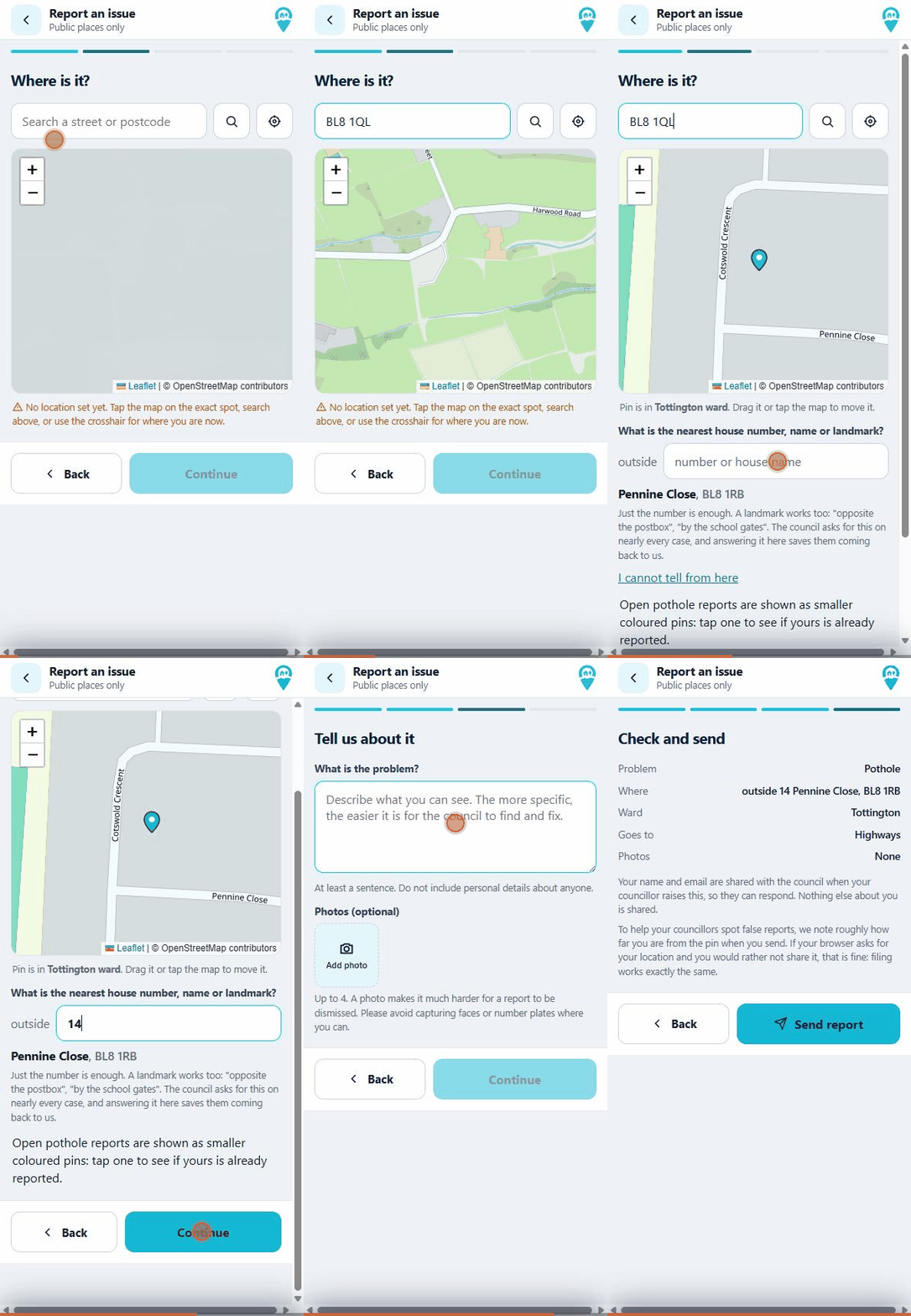
This is a real report being filed, from choosing the problem to the final check screen:
1. Create your account
Choose Create an account and enter your name, your email address and your postcode. The postcode is used once, to work out which councillor covers you, and is not kept. There is no password: each time you sign in, a 6-digit code is emailed to you.
That is everything we ask for. No phone number, no home address, no personal circumstances.
2. Report a problem
Tap Report an issue, then pick the problem: pothole, uneven pavement, fly-tipping, blocked drain, street light, overgrown verge, abandoned vehicle or damaged sign.
Put the pin on the spot. Tap the map, search a street or postcode, or use the crosshair button for where you are standing. Then give the nearest house number or a landmark (“outside 14”, “opposite the postbox”): the council asks for this on nearly every job, so answering it here saves time later.
Describe what you can see and add up to four photos if you have them. A photo makes a report much harder to dismiss. Please avoid faces and number plates. Then check it over and send. Your report and its reference appear straight away under Reports, and you get an email when your councillor sends it to the council.
Missed bin? Report that to the council directly instead: they have a tight deadline that a report through a councillor cannot reliably meet. The app links you straight to the right page on bury.gov.uk.
3. What happens next
Your report goes to your ward’s Reform UK councillor, a real person, not a call queue. They check it, raise it with the right Bury Council department, and chase it. You will see the status change as it moves:
ReportedWith the councilCouncil has respondedWork booked inResolved
You get an email at each stage (you can turn these off in your profile), and the full history is always under Reports. If the council gives a date for the work, you will see it.
4. See what is happening near you
The Nearby map shows every open report in the borough, without any details of who reported them. Worth a look before you file: if your pothole is already on the map, you can follow the existing report instead of duplicating it.
5. Put it on your home screen
Local Reports works in any browser, but it is nicest as an icon on your phone. On an iPhone, open the site in Safari, tap Share, then Add to Home Screen. On Android, open it in Chrome and accept the install prompt, or choose Add to Home screen from the menu. After that it opens full screen like any other app.
Who runs this
Local Reports is run by the Reform UK group on Bury Council. It is not a Bury Council service. You do not need to support any party to use it, and your report gets chased either way.